Back to homepage

The app on iPhone

See what your workday looks like in Handled Calls.

Swipe through the main screens for leads, jobs, customers, scheduling, and settings.

Handled Calls Leads screen showing new calls, customer requests, and next steps.

A quick product tour

From a new call to a booked job.

Swipe on a phone, use the arrow buttons, or scroll with a mouse or trackpad.
1 of 10
Leads page with incoming calls and requests arranged by next action.
LeadsStart with new calls, requests, and the next action.
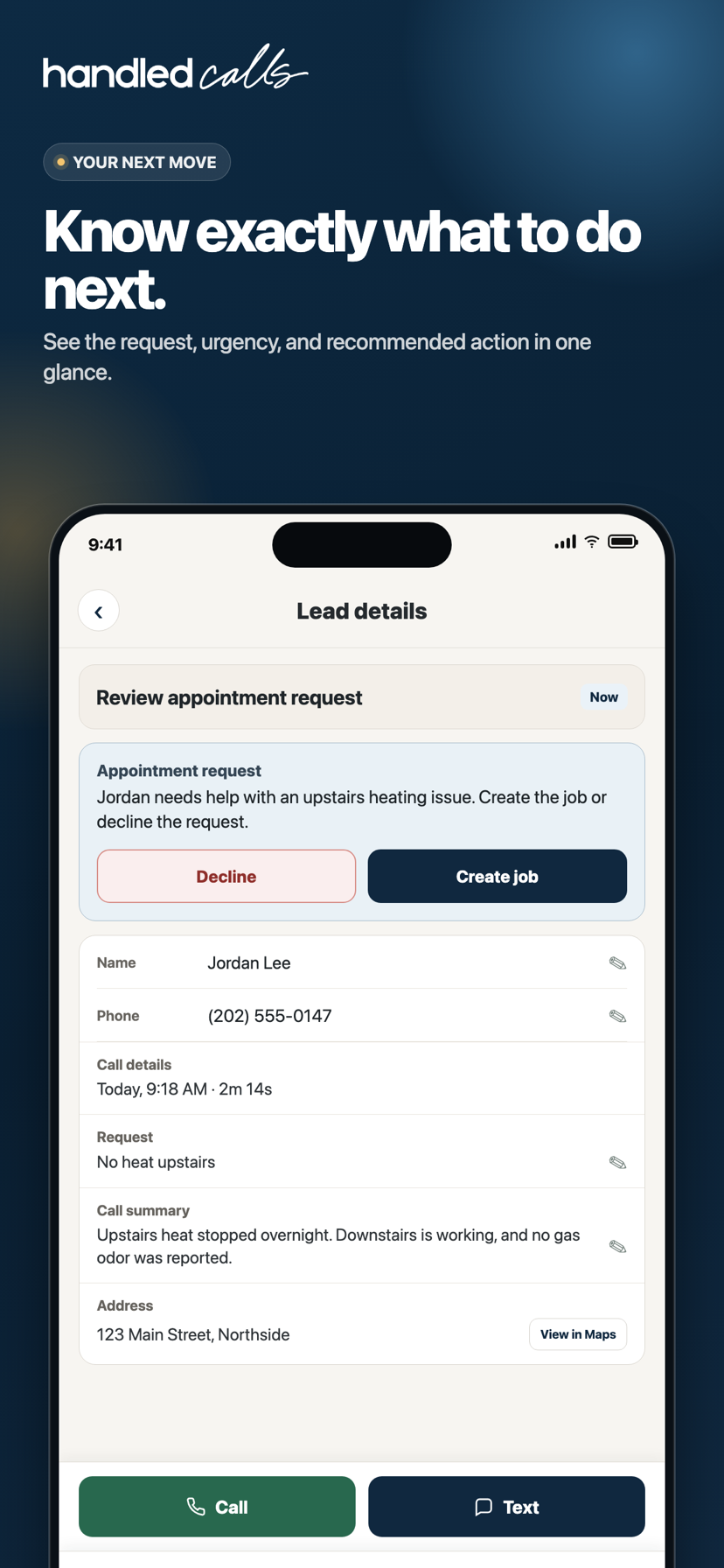
Lead details page with the request, urgency, caller information, and next-step controls.
Lead detailsKnow what the customer needs before you respond.
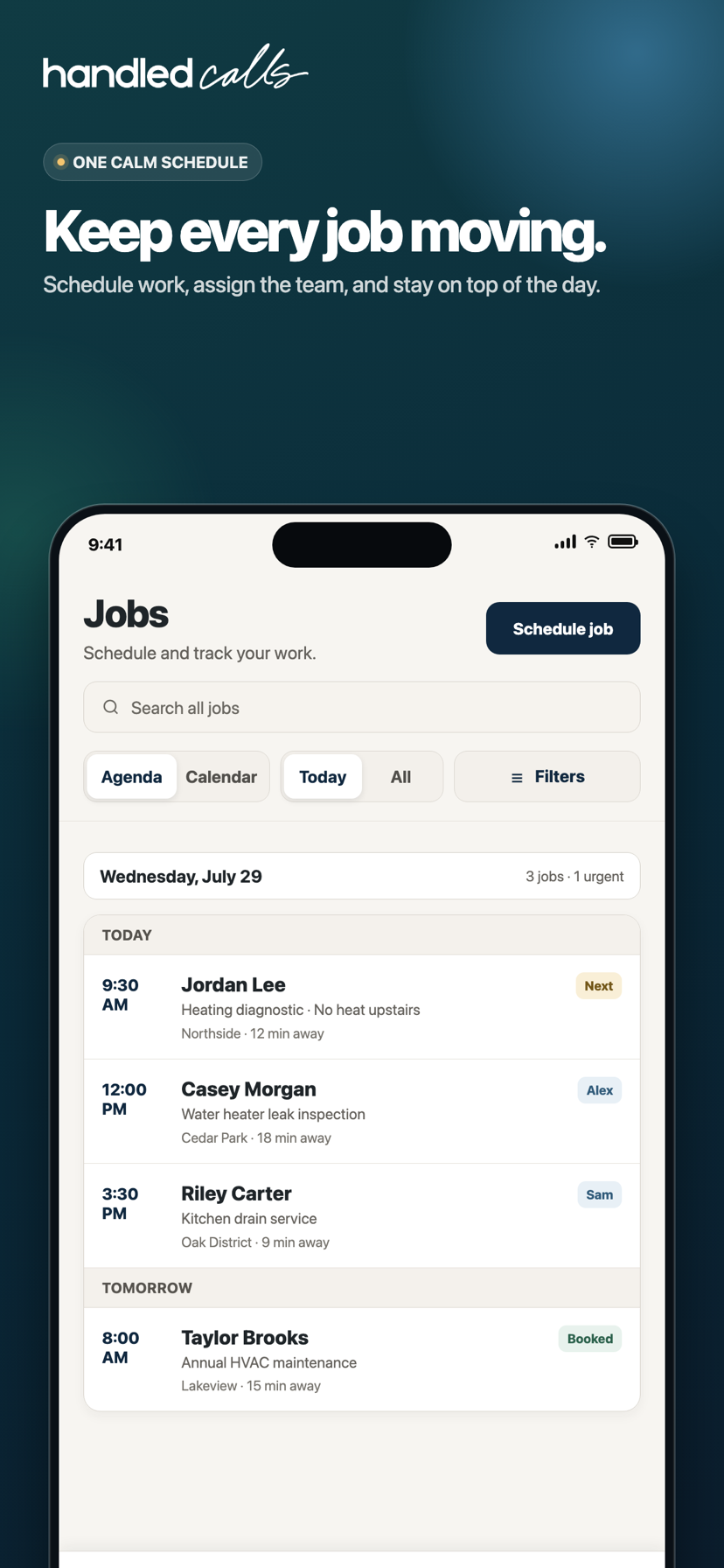
Jobs agenda showing scheduled work, times, team assignments, and status.
JobsKeep today’s work and what comes next in view.
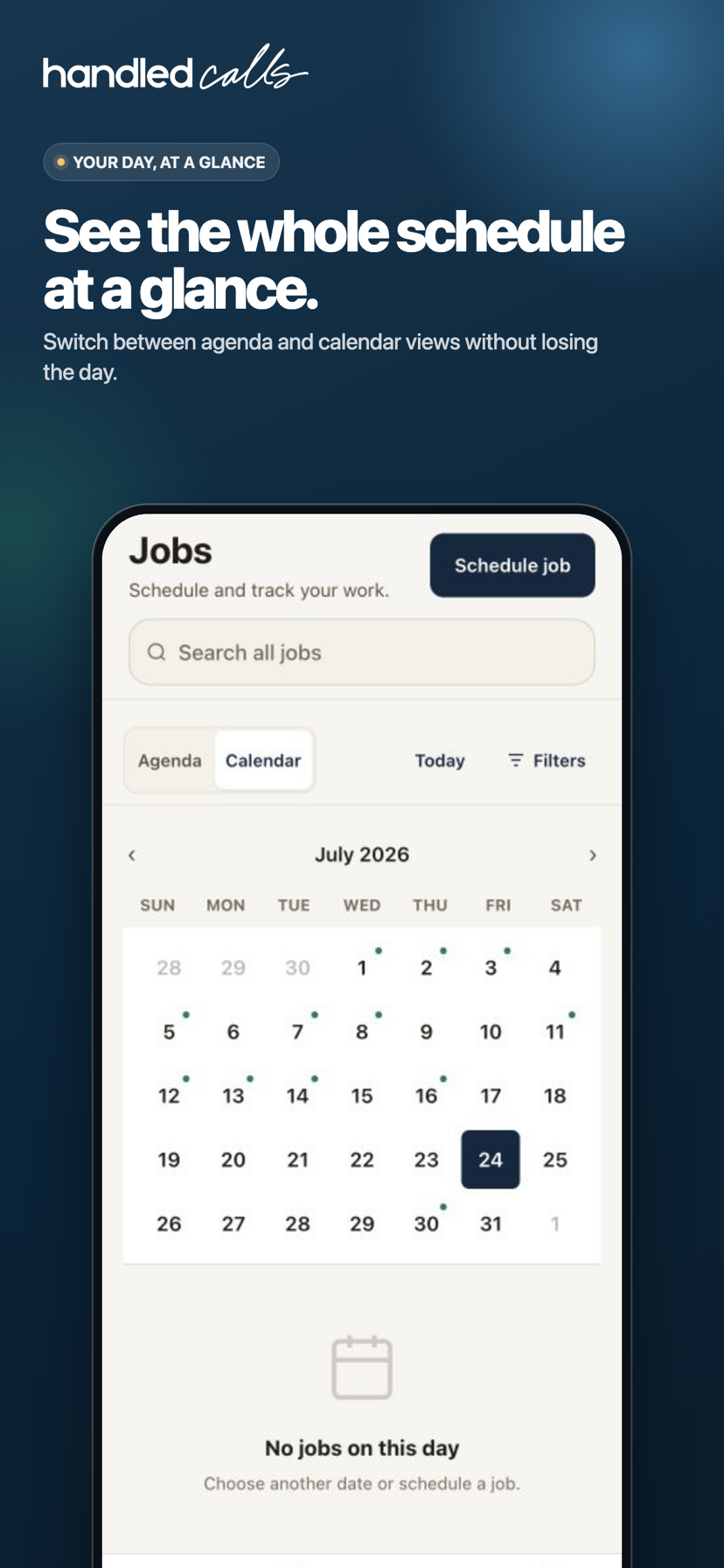
Jobs calendar showing the month and days with scheduled work.
CalendarSwitch from the agenda to the whole schedule.
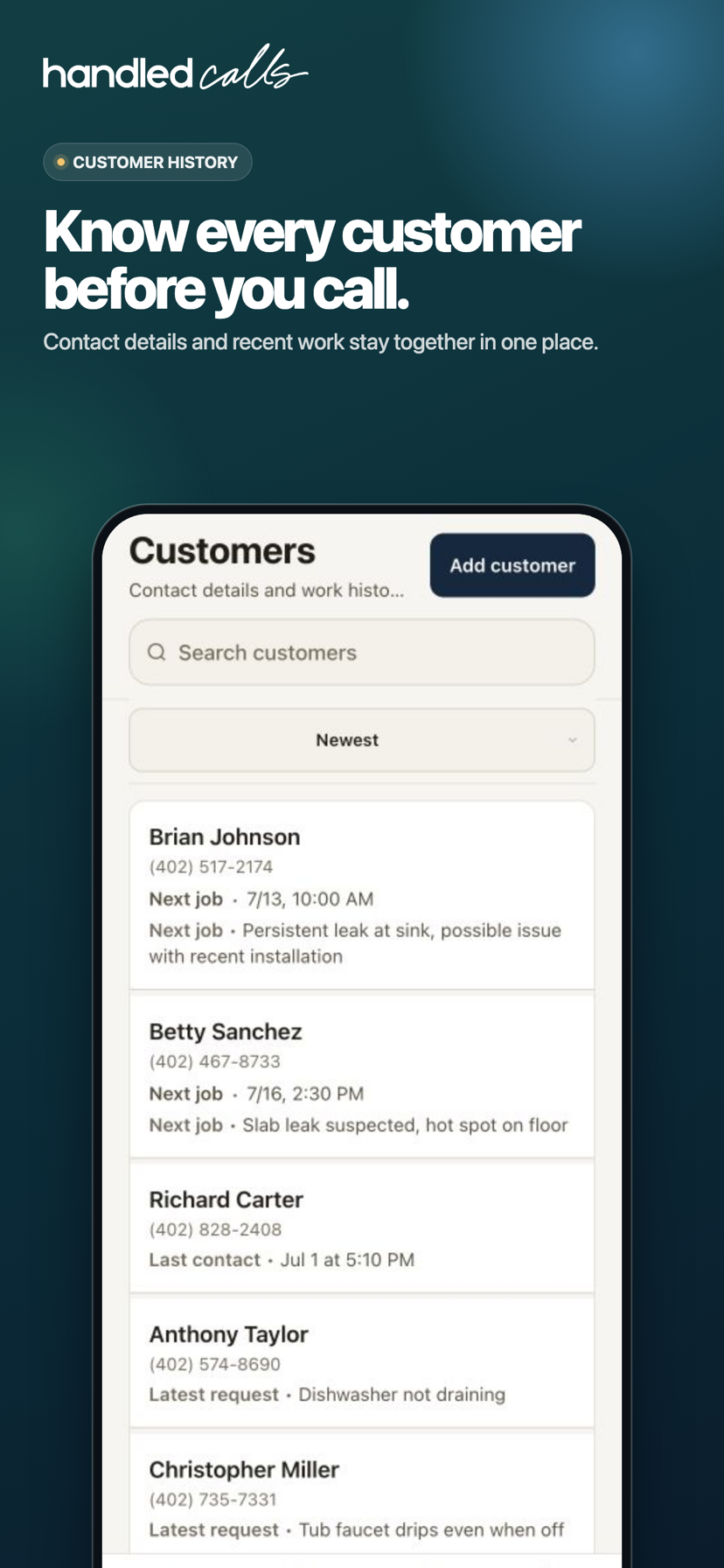
Customers page with contact details and the next job for each customer.
CustomersFind every customer and their recent work.
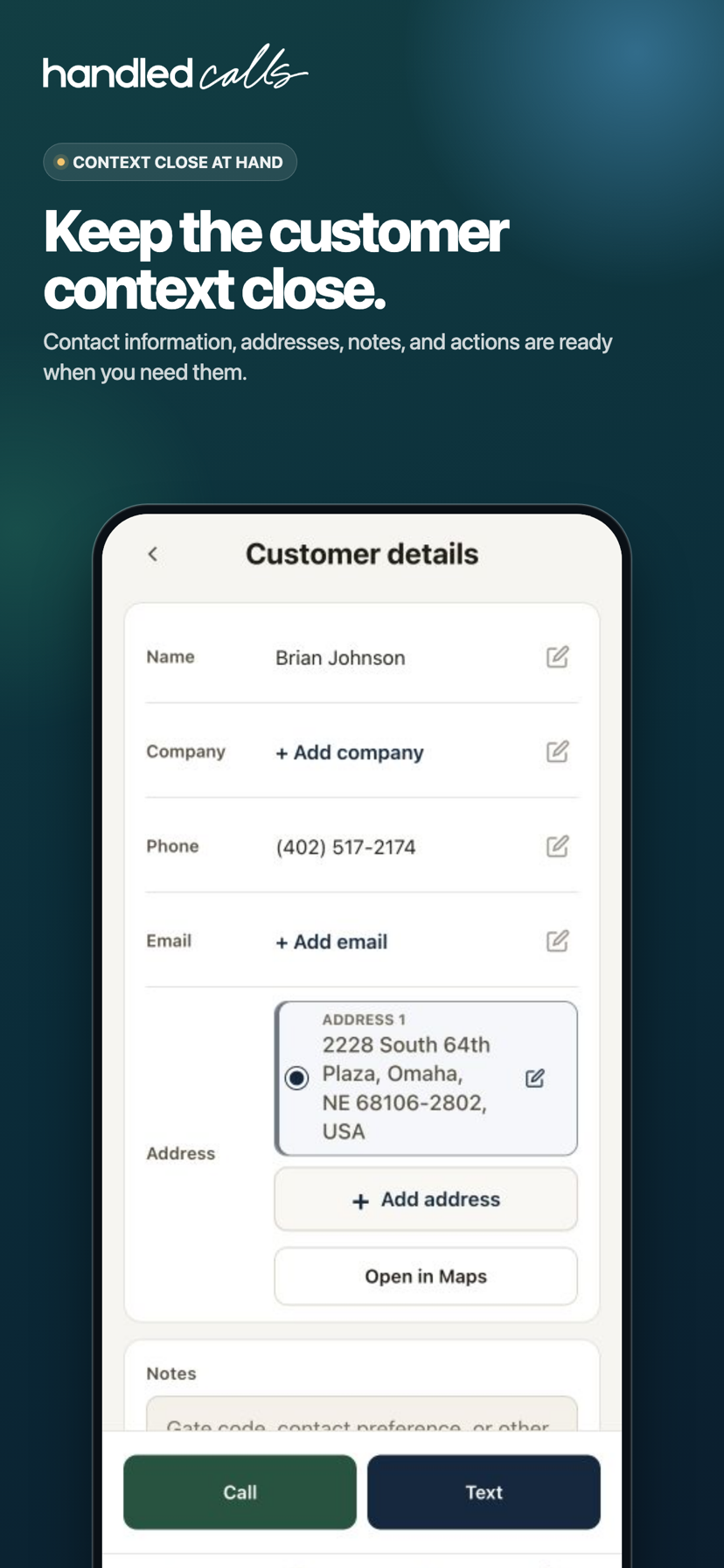
Customer details page with contact information, address, notes, and communication actions.
Customer detailsKeep addresses, notes, and job context together.
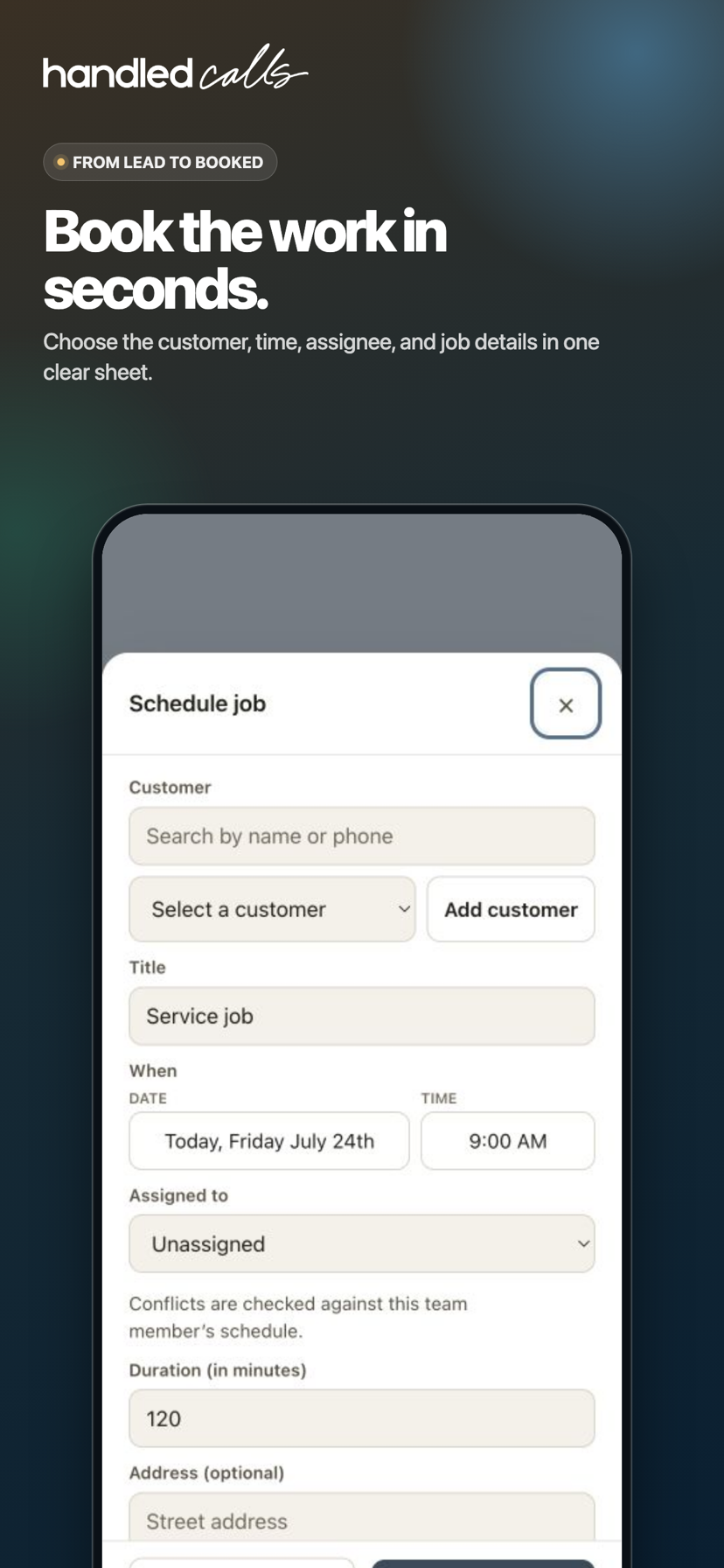
Schedule job form with customer selection, an Add customer option, date, time, team member, and job details.
Create a customer and jobAdd a new customer when needed, then schedule the work.
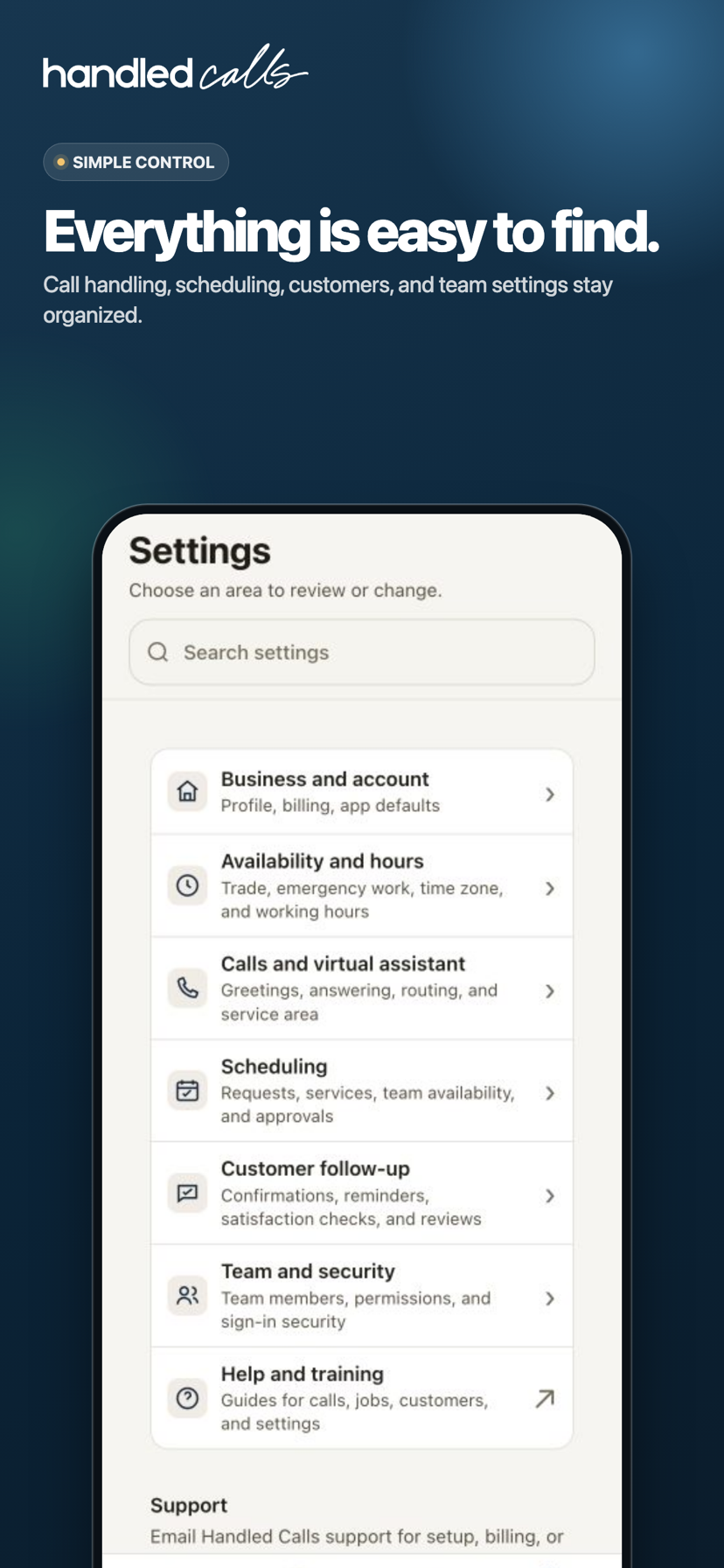
Settings page organizing business, availability, calls, scheduling, follow-up, team, and help options.
SettingsFind the important controls without hunting.
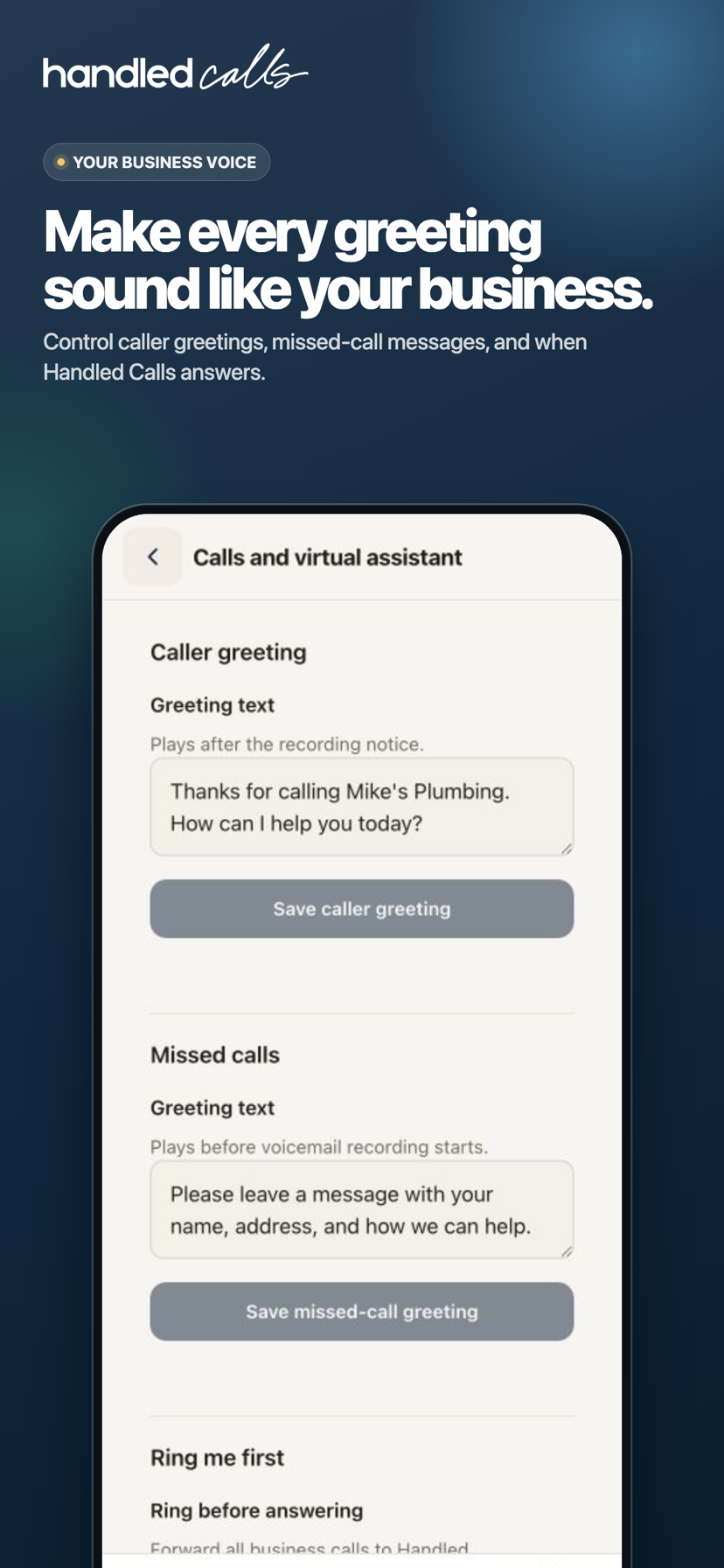
Calls and virtual assistant settings with caller greeting and missed-call options.
Call settingsMake the greeting and call flow sound like your business.
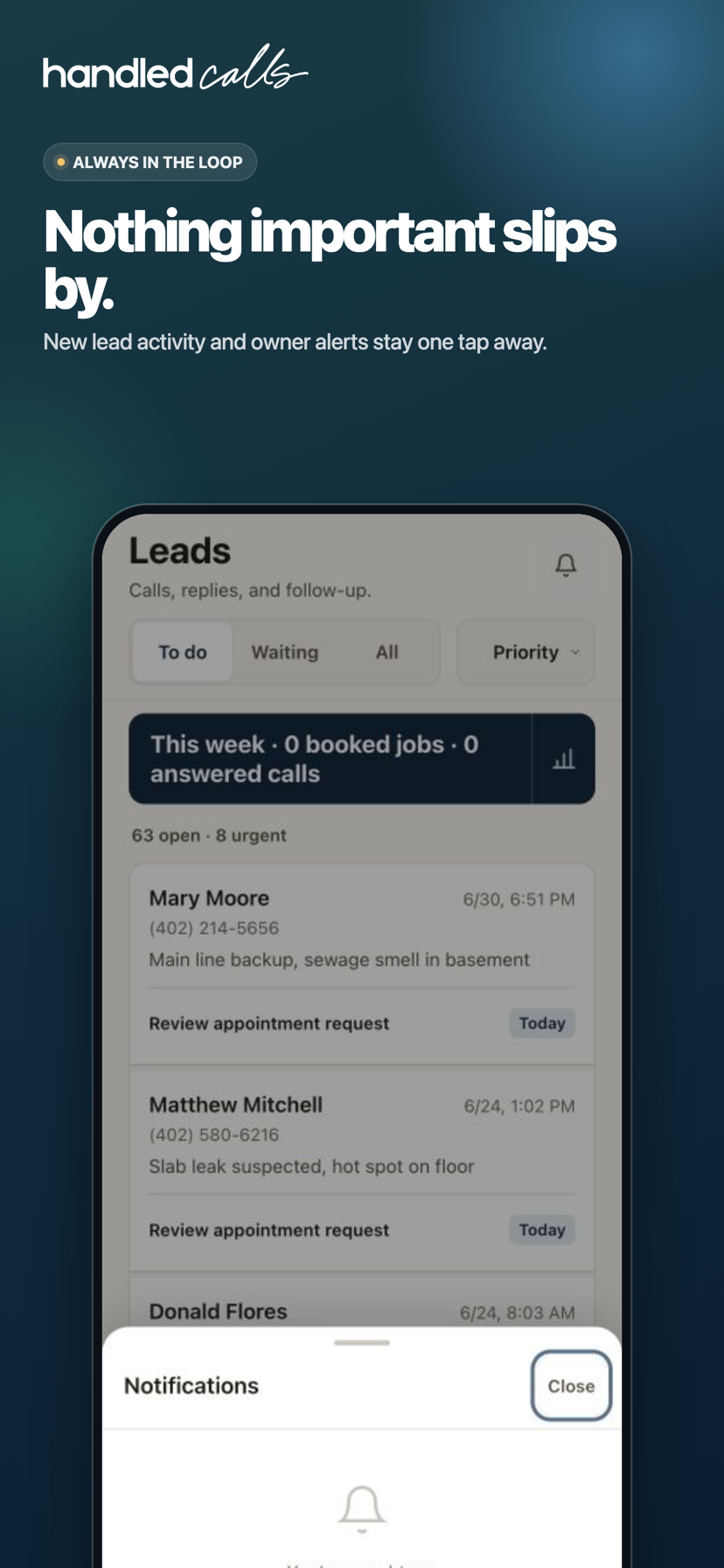
Notifications panel over the Leads page for new activity and owner alerts.
NotificationsSee what needs attention without searching for it.

Ready when you are

Want help using what you just saw?

The training guide explains every screen from the first login forward.